PinDown helps you save Pinterest videos for offline viewing. Download quality depends on the source file Pinterest makes available for each Pin. Not every video has an HD or 4K source, and downloading does not increase its original resolution. This guide explains how to copy a link, use PinDown, and save the result.
What does PinDown.io Web site have?
PinDown.io is a browser-based tool for downloading Pinterest videos on your phone or computer. It retrieves the available video file without requiring you to install another app or browser extension.
PinDown offers a straightforward download workflow with these features:
- Supports many different formats. (It allows users to download Pinterest videos on any device, platform including: Android, IOS, mobile phone, PC or tablet)
- Browser-based processing: paste a Pinterest link and wait for the result. Processing time depends on the Pin, server availability, and your connection.
- Source-quality downloads: the resolution and audio depend on the file available from Pinterest. Not every Pin has an HD, 2K, or 4K version.
- We easily download Pinterest videos using the browser we are using without installing any additional software.
- This tool is completely free to use. The supplier only places a few ads, helping to maintain the cost of the machine during the operation.
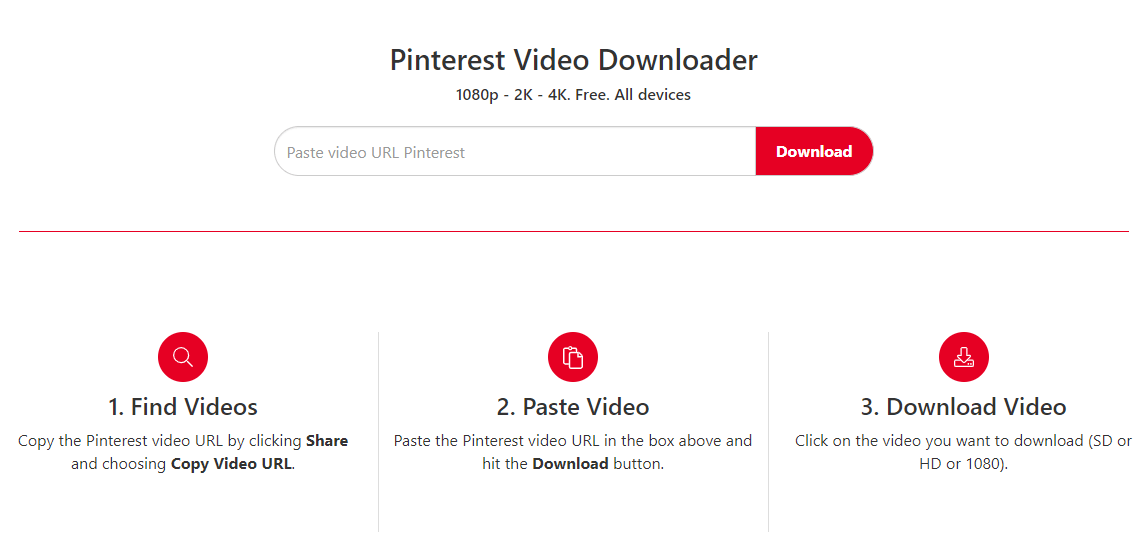
PinDown.io is a high quality video downloader on Pinterest
How to Download Pinterest Videos in HD and 4K with PinDown
Recently, the need to watch and download videos on Pinterest to phones and computers is increasingly popular. If you want you to Download Pinterest videos with 4K quality, you can refer to the PinDown.io user guide as follows:
Step 1: Open the video Pin and use its share menu to copy the link. A standard Pin link looks like https://www.pinterest.com/pin/123456789/; shared links may begin with https://pin.it/. Copy the real link from your Pin rather than the example ID.
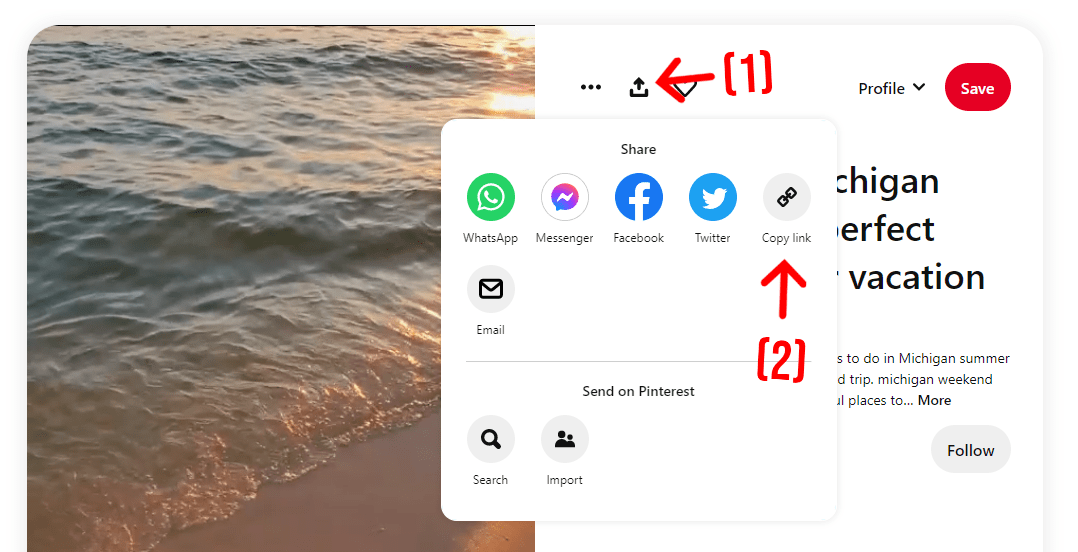
Copy the Pinterest video link the user wants to download to the device
Step 2: Visit PinDown.io, paste the link into the input box, and select Download. Wait for the result to load before submitting again.
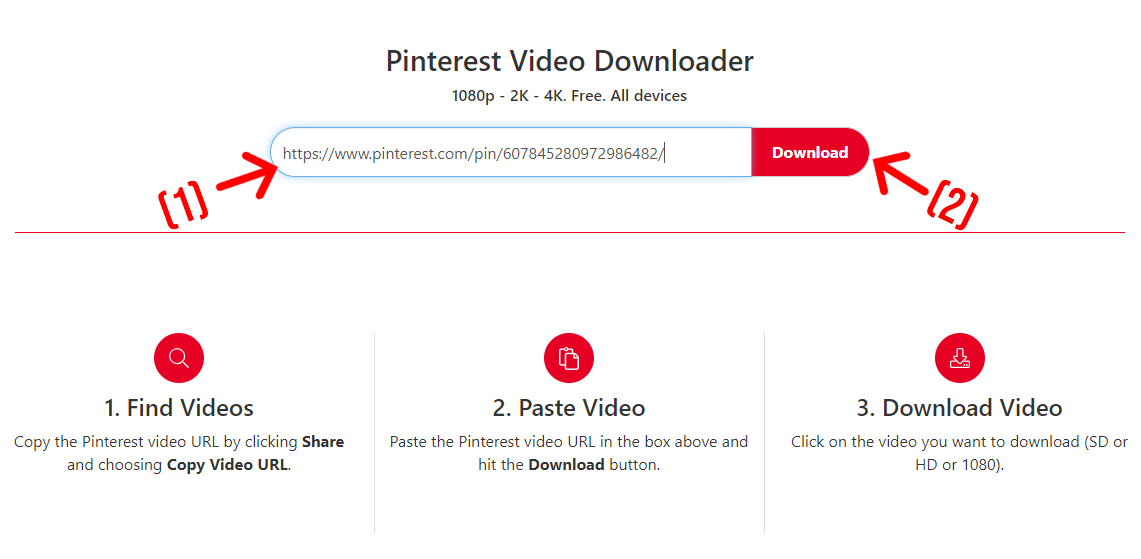
Paste the video link you just copied from Pinterest into the box
Step 3: Check that the preview is the video you want. Use the download option shown for that Pin. The result may offer one video file rather than a list of resolutions; a quality label does not guarantee that the source is 4K.
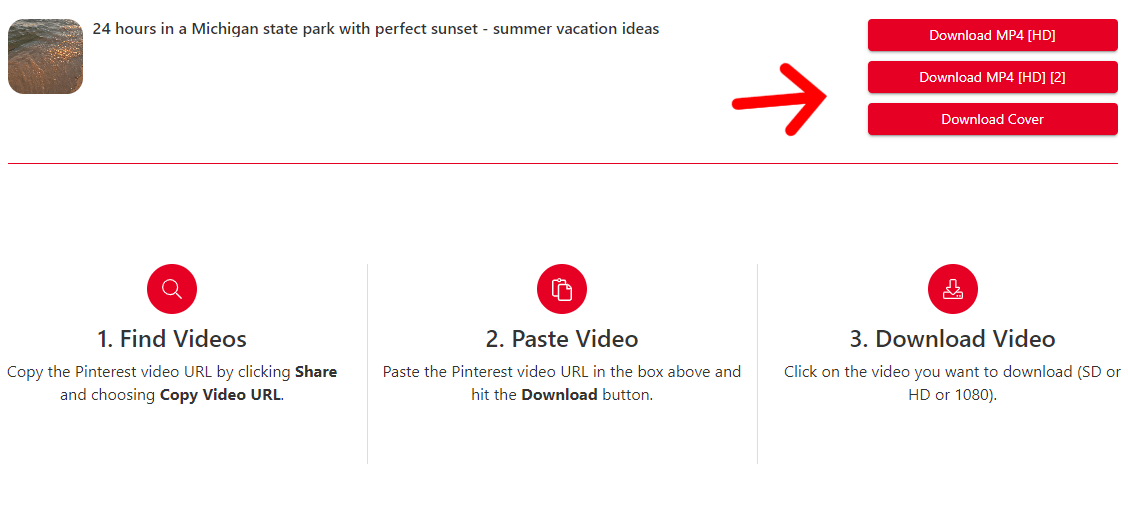
The user chooses the quality of the video he wants to download
Step 4: Select Download to save the file. Download [Direct] opens the original media link, which your browser may play before you choose to save it. Find the saved file in your browser's downloads list or your device's download folder.
What to expect from a PinDown download
PinDown uses a simple browser-based workflow on mobile and desktop. You do not need to install extra software to use the website. Keep your browser up to date and use the download controls shown with your result.
The same Pin may not offer every resolution or format. Downloading a 720p source will not create a true 1080p or 4K version. Audio is only present when it is included in the source file.

PinDown provides a browser-based Pinterest download workflow
Before you download
Use a stable connection and check that your device has enough free storage. If a link fails, open the original Pin to confirm that it is still accessible and copy its link again. Only download content you own or have permission to save, and respect the creator's usage terms.
Thanks!